DEFORM-3D_使用手册【英文版】(图例)
摘要:本文为DEFORM-3D完整实操教程,系统讲解软件各类仿真流程与操作要点。内容涵盖方块锻压、方环成形、热锻转运与保温、多锤锻造、模具应力分析等经典案例,同时介绍连杆、齿轮座等工业基准件模拟及锻轧专用向导用法。教程分步演示模型导入、网格划分、材料赋值、边界与摩擦设置、运动参数定义、仿真提交等前处理操作,详解分步仿真、多工序接续、模具更换的设置方法,以及载荷、应变、温度、应力等结果的后处理查看与分析。还对比了绝对/相对网格优劣,说明求解器、并行运算、单位适配等实用技巧,内容全面、步骤详实,可指导使用者开展各类金属塑性成形、传热及模具力学仿真。DEFORMTM-3DTutorials1.BLOCKPRE-PROCESSING1.1.CreatingaNewProblem1.2.SettingSimulationControls1.3.LoadingObjectData1.4.DisplayManipulation1.5.PointSelection1.6.OtherDISPLAYWindowButtons1.7.SavingtheProblem1.8.ExitingDEFORM-3D1.BLOCKPre.Processing1.1.CreatingaNewProblemOnaunixmachine,typeDEFORM3toopenDEFORM™-3D.OnaWindowsmachine,gotothebuttonandselectDEFORM-3Dfromthemenu.TheDEFORM-3DMAINwindowwillappear,asshownbelow.CreateanewproblembyeitherselectingFile→NewProblemorbyclickingtheNewProblemicon.ThePROBLEMSETUPwindowwillappear.AcceptthedefaultsettingofopeninganewproblemusingtheDEFORM-3Dpre-processor(andnotoneofthewizards)byclickingClicktodefinethelocationofthenewproblem’UnderDEFORMProblemdirectory’.InthefieldforProblemName,calltheproblemBlockandclick.TheDEFORM-3DPre-processorwillopen.ThePre-processorisdividedintoseveraldistinctsections-namelytheDISPLAYwindow,theObjectTreeandObjectData.Thereisalsoarowoficonsalongthetopofthescreen.Theseiconswillbedescribedastheyareencounteredinthelabs.Themostimportantoftheiconsaretheoneslocatedatthetopright.Duetotheirimportance,abriefdescriptionofeachisgiven:1.2.SettingSimulationControlsClickontheicontoopentheSIMULATIONCONTROLwindow.ChangetheSimulationTitletoBlock.MakesurethattheUnitsaresettoEnglishandthatDeformationisactivated(hasacheckmarknexttoit).Clickthebuttonwhenfinished.1.3.LoadingObjectDataAddanobjecttotheproblembyclickingtheInsertobjectbuttonatthebottomoftheObjectTree.hangetheObjectNamefromObject1toBlockandclick.SettheObjectTypetoPlastic.WithinDEFORM,thesurfacedefinitionofanobjectisreferredtoasit’sgeometry.Toimporttheobject’sgeometry,clickandthenthebutton.ThemostcommontypeoffileforimportinggeometryintoDEFORM-3Disthestereolithography(.STL)file.ThegeometryfortheBlockislocatedinthefileBlock_Billet.STLintheDEFORM3D\V5.0\Labsdirectory.Onceyouhavefoundandselectedthisfile,clickthebuttontoimportthegeometryintoDEFORM.ThegeometryofarectangularblockshouldnowbevisibleintheDISPLAYwindow.NowthatasurfacegeometryhasbeendefinedfortheBlock,afiniteelementmeshcanbegeneratedfortheobject.ClickonthebuttontobringuptheMeshingControls.Clickonthebuttontoseewhatthesurfacemeshlookslikewhenusingthedefaultmeshsettings.Thesurfacemeshthatiscreatedlooksgood,soclickthebuttontofinishthemeshingprocess.Whenthemeshingiscomplete,theobjectshouldhavealmost5000elements(whichcanbeseeneitherintheObjectTreeorintheSummarysectionoftheMeshingControls).1.4.DisplayManipulationFunctionsthatmanipulatetheDISPLAYwindow(suchasPan,Zoom,Magnify,andRotate)canbeactivatedusingiconsatthetopofthePre-processorwindow.Thesefunctionsalsohaveeasykeyboard/mousecombinationhotkeysthatallowtheusertoquicklyperformthesefunctionswithoutanyexcessivebuttonclicking.Onceyouhavereadaboutthesefunctions,feelfreetousethemtomanipulatetheviewoftheBlockintheDISPLAYwindow.1.5.PointSelectionAnypointonanobjectintheDISPLAYwindowcanbeselectedtoobtainthecorrespondingdataforthatpoint.Also,distancescanbemeasuredeitherbetweentwopointsononeobjectorbetweentwopointsondifferentobjects.1.6.OtherDISPLAYWindowIconsThefollowingiconsarealsousedwhenviewingobjectsintheDISPLAYwindow:1.7.SavingtheProblemThisisagoodpointtosaveyourdata.Tosavethedatatoakeywordfile,eitherselectFile→SaveorclicktheSaveicon.TheinformationwillbesavedinafilecalledBlock.KEY.1.8.ExitingDEFORM.3DIfyouarecontinuingontoLab2,itisnotnecessarytoexitDEFORM-3D.IfyouarenotcontinuingontoLab2,clicktheExiticon.OnceyouarebackintheMAINwindow,youcanexitDEFORM-3DbyselectingFile→Quitorbyclicking.Whenaskedwhetheryouwanttoquit,click.详细内容请见附件免责声明:本页面/内容部分素材来源于互联网公开信息,旨在传递更多信息,不代表本平台立场。版权归原作者或机构所有,如涉及侵权,请通过平台联系我们,我们将在核实后第一时间处理。本平台对转载内容的真实性、准确性不作任何保证,用户需自行判断并承担使用风险。
有附件


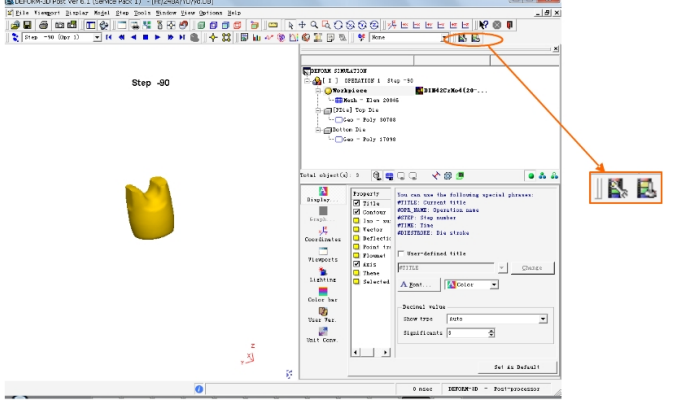
 左边那个图标,如下图所示: